
Remote access
Without remote access, camera.ui is reachable on your local network only. Remote access is free and doesn't need the recording subscription.[1]
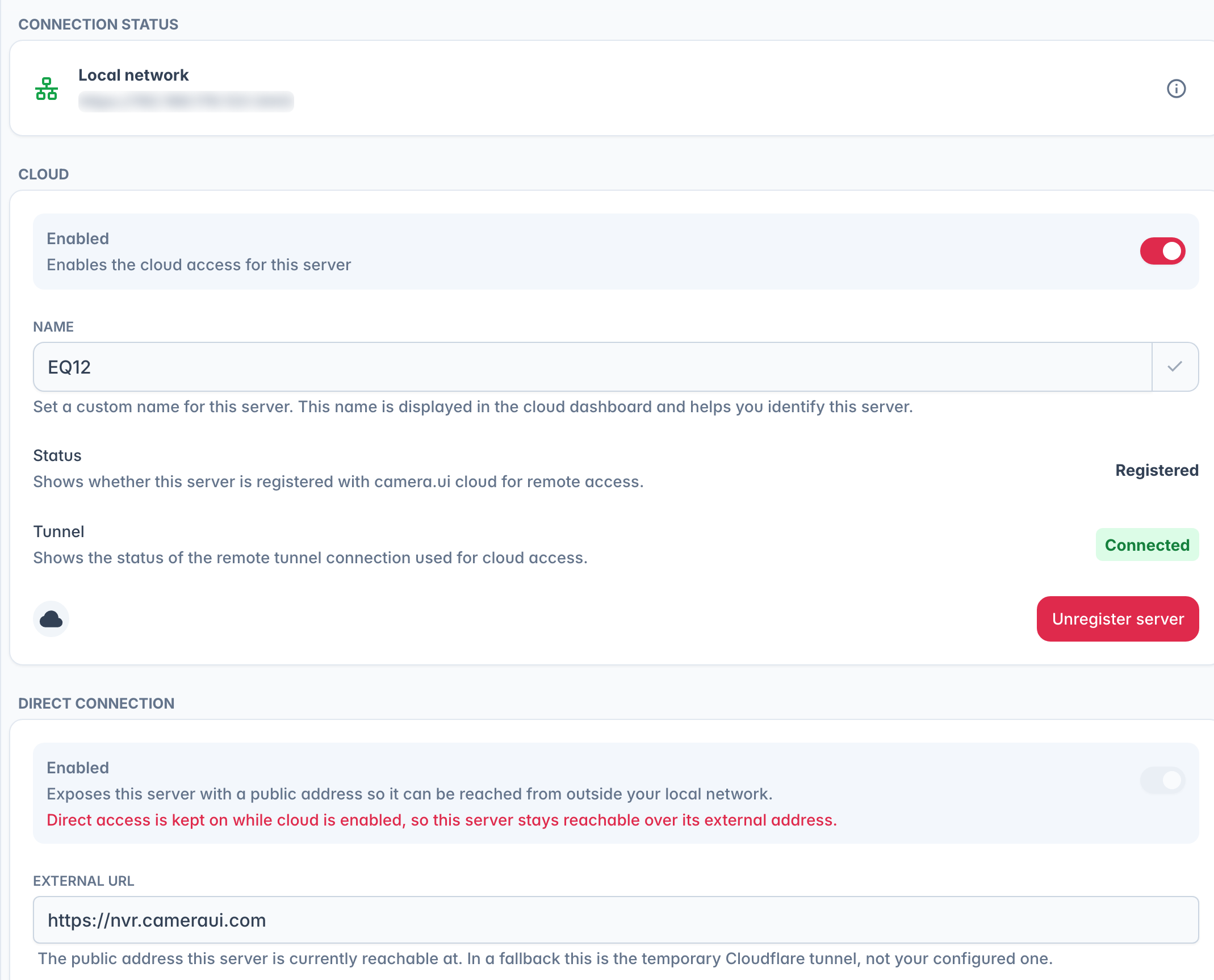
Remote access is an admin setting, under Settings → Remote Access. The page shows your current connection status (local, local network, remote, or cloud) and the address you're connected on. The info button next to it opens Connection details: the address this app is using, what the server sees from its side, and every address the app tried in its last attempt with the time it took and why it failed. Copy details copies all of it for a support message. The same page holds the Network card, where you pick which of the server's IP addresses apps may use and can give it a Local address on your own network. Its list holds VPN addresses such as WireGuard too, but leaves out container and VM networks.
On connecting, and whenever the path changes (you get home and the app leaves the internet path, say), a short notice at the bottom says Connected via local network, Connected via internet or Connected via cloud.
Choosing how to connect
- camera.ui Cloud. Register your server and reach it from anywhere, no router setup or port forwarding. Recommended for most people, and required for the mobile apps when away from home.
- Direct connection. Expose your server with a public address of your own, either through a Cloudflare tunnel or your own domain.
You can also keep access local only by leaving remote access off.
WebRTC
The interface, the API and MSE playback use the connection you chose above. WebRTC live view and two-way audio open a path of their own. The server and the app look up their public addresses with a STUN server, the server offers its address with port 2004, and both try to open a direct path through their routers. Usually that works without any router setup. Behind some routers and behind carrier-grade NAT, common on mobile networks, no direct path forms. A camera on Auto then plays over MSE, one set to WebRTC shows no picture, and two-way audio does not connect.
Three things help:
- The relay through cameraui.com. On a server linked to camera.ui Cloud, switch on Relay through cameraui.com. Live view and two-way audio from outside then go through the relay whenever no direct path forms. The video stays end-to-end encrypted, the relay only passes it on. Status below the switch shows whether the relay is ready. While a live view runs through it, admins see a cloud symbol on the player.
- Forward port 2004. UDP, with TCP on the same port as fallback, to the server. The address the server offers is then reachable from anywhere.
- A TURN server of your own. It relays the media like the relay above. Run your own (coturn, for example) or use a hosted one.
When the server's own line sits behind carrier-grade NAT (DS-Lite, for example) and no port can be forwarded, only the relay or a TURN server gets WebRTC through.
The WebRTC card under Settings → Streaming holds the relay switch and sets the port and the STUN servers and TURN servers, for the server and for the apps. Each TURN server gets its own addresses, Username and Password, add more with Add TURN server. With the STUN list empty neither side looks up a public address, and from outside WebRTC then needs a TURN server. The button at the end of the STUN field brings back the default STUN servers, they apply after Save.
Remote access and camera sharing are included at no cost. The subscription covers recording (NVR), not remote access. ↩︎