
Backup & restore
Backups live in Settings → Backup (admins only) and restore on any platform.
Creating a backup
Choose Download to save a single encrypted archive (.cuibackup) of your camera.ui storage directory: configuration, database, user accounts, and plugin data. Recordings are not included.[1] The server packs the archive first and needs about as much free space as the data in it.[2] If that does not fit, the backup stops and names the space it needs. The card shows when the last backup was made, and so does Settings → System.
Backup key
Every backup is encrypted with the backup key of its server, shown in the Backup key card. The same server opens its archives by itself, another server asks for the key. Keep it outside the server, in a password manager or as the file from Save key file: without it nobody can open the backups. Until you confirm with I saved the key, camera.ui reminds you after each download.
A restore brings the backup key of the backup along, so the restored server opens the archives of the old one and encrypts new ones with the same key. Unencrypted .tar.gz archives restore without a key.
Restoring
Pick an archive and choose Restore, or use the restore button of an archive under Available backups. A dropped connection does not start the upload over: it continues where it stopped, also when you pick the same file again in the same browser tab.
An archive from another server asks for its backup key: enter it or open the key file. camera.ui then checks the archive and shows what it holds: when it was created, the camera.ui version and platform, the number of cameras and plugins, and the accounts to sign in with afterwards. A restore outside Home Assistant leaves out the homeassistant account of the Home Assistant app, which signs in only there. If no other master account remains, an account named admin from the backup becomes the master and keeps its password. Without such an account, sign in as admin with the password admin afterwards. Ports and addresses that belong to the old machine, such as port 3543 of the desktop app or an IP this server does not have, are reset to this server's defaults, and the summary lists each one. Nothing changes until you confirm with Restore. A backup that waits for confirmation also shows under Last restore and is discarded after 24 hours.
Each plugin installs in the version from the backup if that version runs on this camera.ui, otherwise in the newest version that does. The summary names a different version, a plugin that cannot be installed, one that does not run on this system (its cameras keep their settings), and plugins that ran on a worker. It also names a plugin that is installed on this server but missing from the backup: it stays installed and starts without its settings.
After the confirmation the server restarts, applies the backup and installs its plugins, with the progress per plugin in the window. At the end camera.ui logs you out; sign in with an account from the backup. A plugin that fails to install is retried at every start, and its cameras keep their settings until then. Under Last restore you can retry it right away or discard it.
Folders a backup leaves out, such as recordings, stay as they are on this server. The summary lists the ones the old server had, with their size, so you can copy them over yourself. For a backup of this same server the list is left out, the folders are already here.
- Undo. The setup from before the restore is kept for 7 days.[3] Undo restore under Last restore puts it back and restarts the server. Changes made since the restore are lost.
- Automatic rollback. If camera.ui fails to start three times with the restored setup, it puts the previous one back by itself. The login page and Last restore say so.
- Interrupted restore. If the server stops while it applies the backup, it finishes the restore at the next start.
- Rejected archives. An archive with a damaged database is rejected before anything changes, and so is a backup from a newer camera.ui than the one on this server. Update camera.ui first in that case.
Before you confirm, choose how this server takes over the backup. camera.ui suggests Move for a backup of this server and for a server without cameras, otherwise Copy.
- Move. This server replaces the old one and keeps its identity: certificate authority, remote access, sessions and paired workers. Apps, the Apple TV and workers keep trusting it. Turn the old server off. If it still answers on this network, the summary names its address. If camera.ui could not look for it, the summary says so, on a Mac usually because camera.ui has no access under System Settings → Privacy & Security → Local Network. If the address changed, set the new one as master address on the server. Workers in the same network find the new server by themselves, others need the new address too. A backup without a certificate authority keeps this server's own, so devices that trusted the old server need the certificate again.
- Copy. Both servers keep running and the copy gets its own identity. Sessions, API tokens and workers of the old server are left behind, cameras and plugins run on this server, and remote access is off.
After every restore, an undo included, sign the server in to cameraui.com again under Settings → Remote Access and connect a licensed NVR again in its settings. Until then recording can stop, and the NVR's notification names the date.
Moving to another server
The new server can fetch everything from the old one directly, without downloading an archive. Both servers have to reach each other on the network.
- On the old server, choose Create move code under Move this server. The code is valid for 30 minutes and is shown once. Treat it like a password, it gives access to the whole backup.
- On the new server, enter the code on the welcome screen under From Another Server or in the Restore backup card, then choose Fetch backup. The code only works on another server, the old one cannot fetch a backup while it offers a code. If the code does not find the old server, for example in another network, enter its address as
host:portunder Address of the old server. - The old server restarts, stops its cameras, plugins and workers, packs its backup and sends it. The summary then shows as for an archive, with Move suggested. Confirm as described under Restoring.
Until the new server has fetched the backup, Cancel move under Move this server stops the move and the old server runs as before. After the transfer the old server stays stopped, and its login page says it moved. Run here again in the same place starts its cameras and plugins again. It does so by itself if you cancel on the new server, discard the backup there before confirming, or if the new server does not fetch the packed backup within 30 minutes. Restoring a backup on the old server lets it run again as well.
Scheduled backups
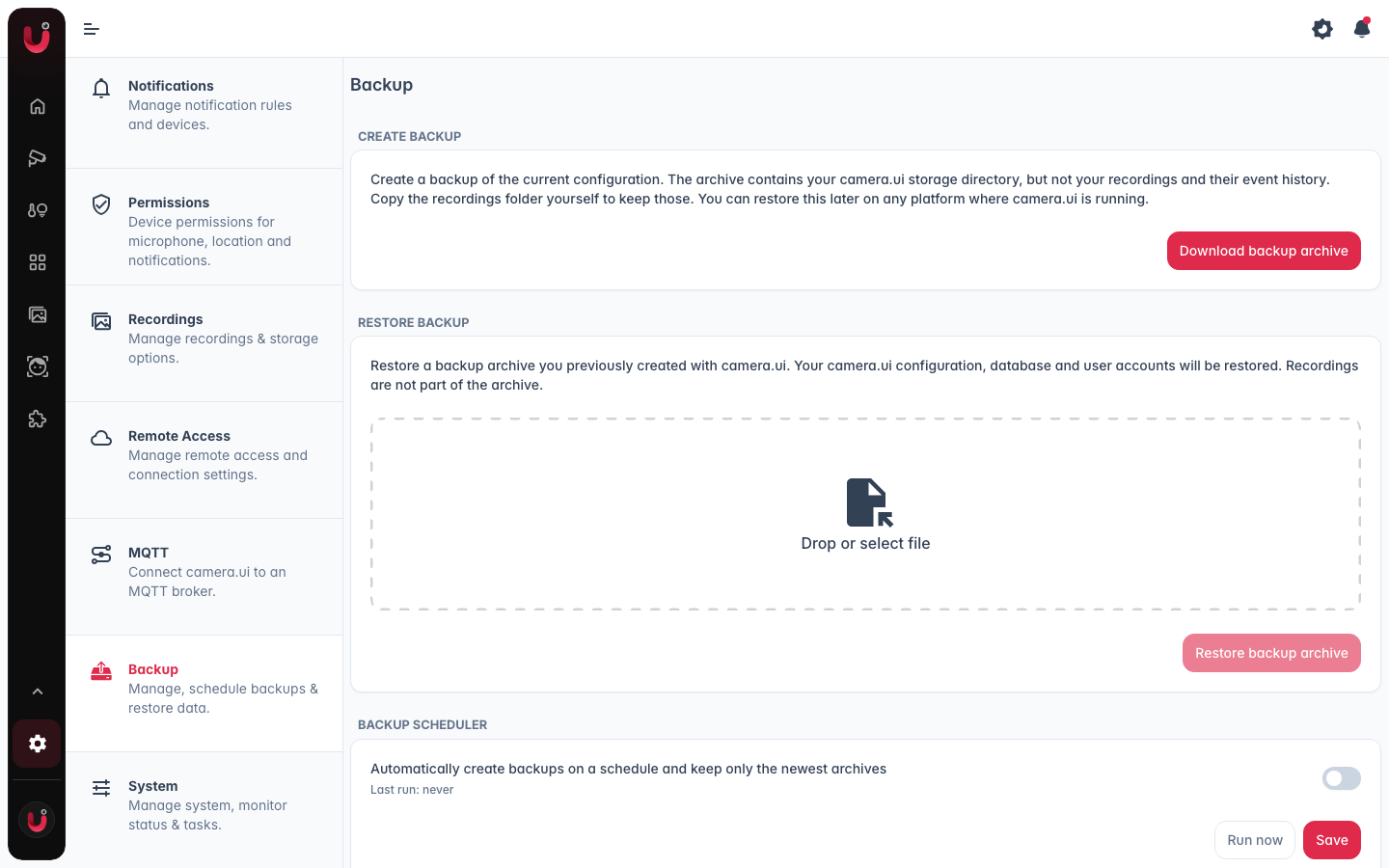
The Backup scheduler card creates backups automatically and keeps only the newest archives.
Turn it on and set:
- Frequency. Daily, Weekly, or Monthly.
- Time. The time of day the backup runs, as HH:mm (default
03:00). - Weekday. Shown only when Frequency is Weekly.
- Day of month. Shown only when Frequency is Monthly, 1-28.
- Keep backups. How many of the newest archives to retain, 1-60 (default 7). Older archives are deleted automatically after each run.
- Destination folder. An absolute path on the server, for example a NAS mount. Leave it empty to use the default folder inside your storage directory. A relative path is rejected.
Run now starts a backup immediately. Last run shows the time and result of the most recent scheduled run. A run missed while the server was off follows two minutes after the next start. A failed run sends the system notification Scheduled backup failed to admins.
Scheduled archives are encrypted like a download and written to the destination folder on the server. In a folder of your own, each server writes into a subfolder named after its instance ID, so several servers can share one NAS folder. Saving the destination places a .backupignore file in it. A run that finds the folder missing, or empty without that file (a share that is not mounted), writes nothing and fails. The destination folder is never part of a backup and stays in place when one is restored. Available backups lists the archives for download, restore or removal and marks those encrypted with the key of another server.
Command line
On the machine the server runs on, the cameraui command creates and restores backups without the browser. In Docker run it inside the container (docker exec -it cameraui cameraui backup) and write to a mounted folder.
cameraui backup -o /mnt/nas/camera.ui
cameraui restore camera.ui-backup-1760000000000.cuibackup --key-file key.txt --movebackup. Saves an encrypted archive to the current folder, or to the file or folder given with-o. It signs in with an admin API token from--tokenorCAMERA_UI_API_TOKEN, otherwise with an admin account.restore. Uploads the archive, prints the summary and asks before it changes anything.--moveor--copysets the mode, otherwise it asks with the suggested one as default.--key-filegives the backup key of another server,-yrestores without asking. A restore needs an admin account, API tokens are not accepted.- Sign-in.
--usernamenames the account, the password comes fromCAMERA_UI_PASSWORDor a prompt,--codegives the two-factor code.
The exit code is 0 on success and 1 otherwise.