
Recording (NVR)
Recording and everything in this section need an active camera.ui subscription.[1]
Preview phase
Subscriptions aren't open yet. While camera.ui is in preview, recording is free for everyone with a camera.ui account, no card needed: create one at cloud.cameraui.com and follow the steps below. If the license does not activate, ask on our Discord.
Turning on recording
Recording comes from the camera.ui NVR plugin, which is installed by default, and runs on a subscription tied to your camera.ui account. To turn it on:
- Open Settings → Recordings and, in the License & Cloud card, click the cloud icon and sign in with your camera.ui account. If the server is not registered yet, the dialog registers it with your account first and then continues with the sign-in.
- Your license then activates automatically. If the status doesn't update, use the Refetch License button.
If signing in ends with Server limit reached for your plan, the license is still held by another server, an earlier test install for example. Remove that server in the cloud dashboard and sign in again.
A license runs on one installation of a server at a time. If another installation signs in, the first one stops recording and shows a notice. Signing in there again moves the license back. A server you remove in the cloud dashboard stops recording.
With an active license, new cameras start recording on their own while a camera slot is free: continuously, in every stream quality. A battery camera that its plugin reports as one starts in Ad-hoc instead. Mode, qualities and on/off are in the camera's recording settings.
Recording takes H.264, H.265 and MJPEG. An MJPEG camera records its pictures as it sends them, which needs several times the storage of H.264, and a picture wider or taller than 2040 pixels is cropped to 2040 around its center. A camera that sends another codec records nothing, and its timeline shows a recording error that says so. Live view shows how to transcode such a camera on the server.
Camera slots
The License card in Settings → Recordings shows how many recording slots your plan includes, how many cameras are active, and how many currently use a slot. In the browser and the desktop app, Manage plan in the License & Cloud card opens your plan in a new tab. With several servers, you also split its slots between them there.
A camera without a free slot keeps detecting, its events and its live view, but does not record, so check the License card if footage is missing from one camera. Turning off recording on a camera frees its slot for another.
When more cameras have recording on than your plan has slots, the Recording slots card lists them in order. The cameras at the top record, the others wait for a free slot. Move a waiting camera up to record it instead of the one it passes. The double arrow moves it to the top in one step. A camera you turn recording on for joins at the bottom.
If your subscription or trial ends, recording stops and playback, export, face recognition and search ask for a valid license. Recordings stay on disk and come back when the license is valid again. Retention and storage limits keep running, so older footage is still deleted, favorites excepted. Export what you want to keep before the end date. Three days before a trial ends, you get a reminder by email.
You can cancel at any time in your account or without a login at billing.cameraui.com/cancel. The plan runs until the end of the billing period. After its first year, a yearly plan ends one month after you cancel, and you get back what you paid for the time after.
Without internet the license keeps working for a while. Before anything stops, Settings → Recordings shows the date and admins get a notification. One connection to cameraui.com brings everything back, so let a server that is mostly offline go online now and then.
Recording modes
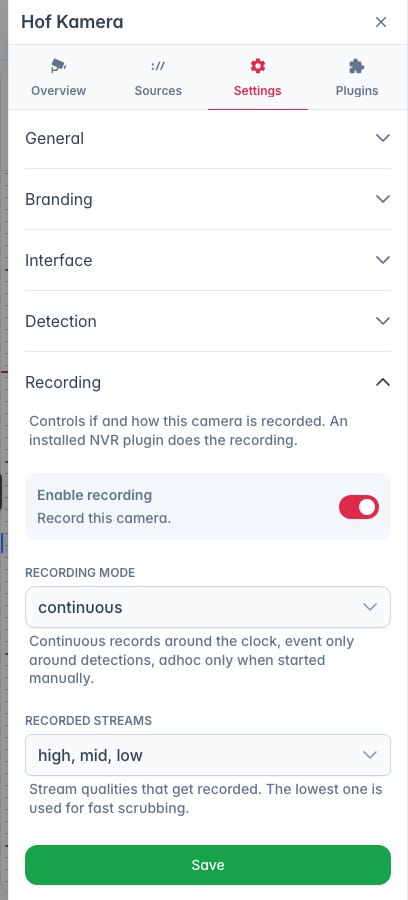
Each camera records in one of three modes, set in its recording settings:
- Continuous. Records around the clock. Uses the most storage.
- Event. Records only when something happens (motion, an object, a sensor). A pre-buffer keeps a few seconds before each trigger.
- Ad-hoc. Connects to the camera only when an event fires. For cameras that stop sending events while a stream is open, such as some battery cameras.
Quality
Record one or more stream qualities: high, mid, low. Also recording the low stream makes scrubbing the timeline fast.
Next
- Storage & retention — where recordings live and how long they're kept.
- Timeline & playback — review footage.
- Export & download — save a clip.
- Browsing & filters — find past events.
Recording (NVR) requires an active camera.ui subscription. ↩︎