
Export & download
Export a clip
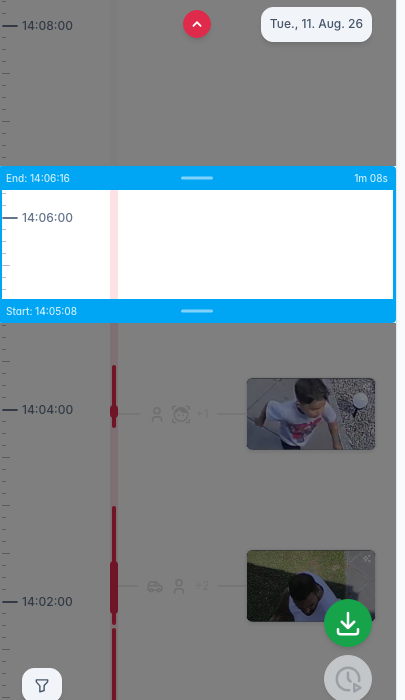
On the timeline, drag the trim handles to the start and end, then export an MP4. The clip is saved in the quality you are watching, so a lower quality gives a smaller file. A selection of more than 24 hours is exported like in the dialog below, as one MP4 per day in a ZIP.
Export multiple recordings
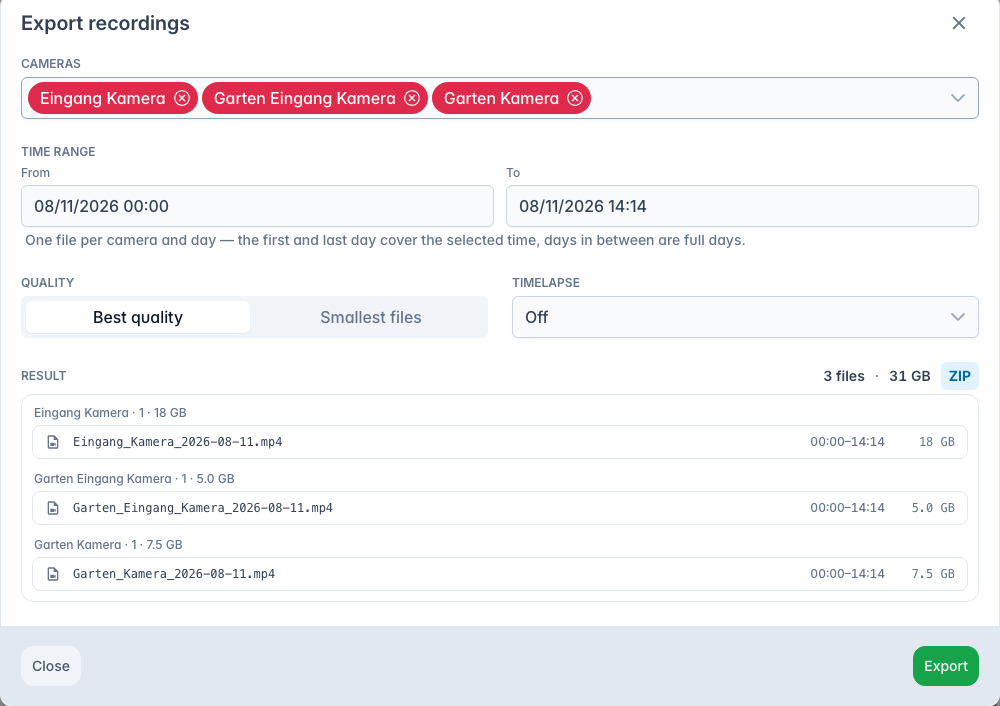
The download button in the Recordings view opens Export recordings: one or more cameras, a time range across days, a quality (Best quality or Smallest files), and optionally a timelapse interval. You get one MP4 per camera per day (first and last day cut to the selected range, days in between in full) and a size estimate up front. Several files come as one ZIP, a single file as a plain MP4. The dialog's quality choice is independent of what you are watching.
Both exports convert the recordings of an MJPEG camera to H.264. That takes longer, and the files end up well below the dialog's size estimate.
A clip or a single file is sent while it is read from the recordings: the download starts at once, nothing is written to the disk, and the MP4 plays while it is still loading. A ZIP is put together one file at a time on the disk with the recordings and needs room there for about twice its largest file. One that would leave too little room for recording is refused, a shorter range or Smallest files helps.
Only a few exports run at the same time, and a download that stays paused for several minutes is cancelled. Recordings a running export still needs are kept until it has read them.
Timelapse
Both export flows can produce a timelapse instead, sampling frames at an interval to compress a long period into a short clip.