
Browsing & filters
The Recordings view lists past events across your cameras, ordered by when something last happened in them. An event that runs for hours shows while it runs, with its newest span on the card. Related events across cameras can appear as an episode card, and a recording that belongs to one shows Open episode. See Episodes.
When the list says recordings are unavailable, the NVR plugin is not running. The list fills once the plugin answers again.
Filtering
Show at the top of the sidebar picks what the list holds: All, only Events, or only Episodes. Episodes have no detections of their own, so in that view only camera, time range, Only with recording and Favorites only narrow them down.
A dot on the filter button shows that a filter narrows the list, also while the sidebar is closed. Reset filters at the bottom of the sidebar puts every filter back to its default.
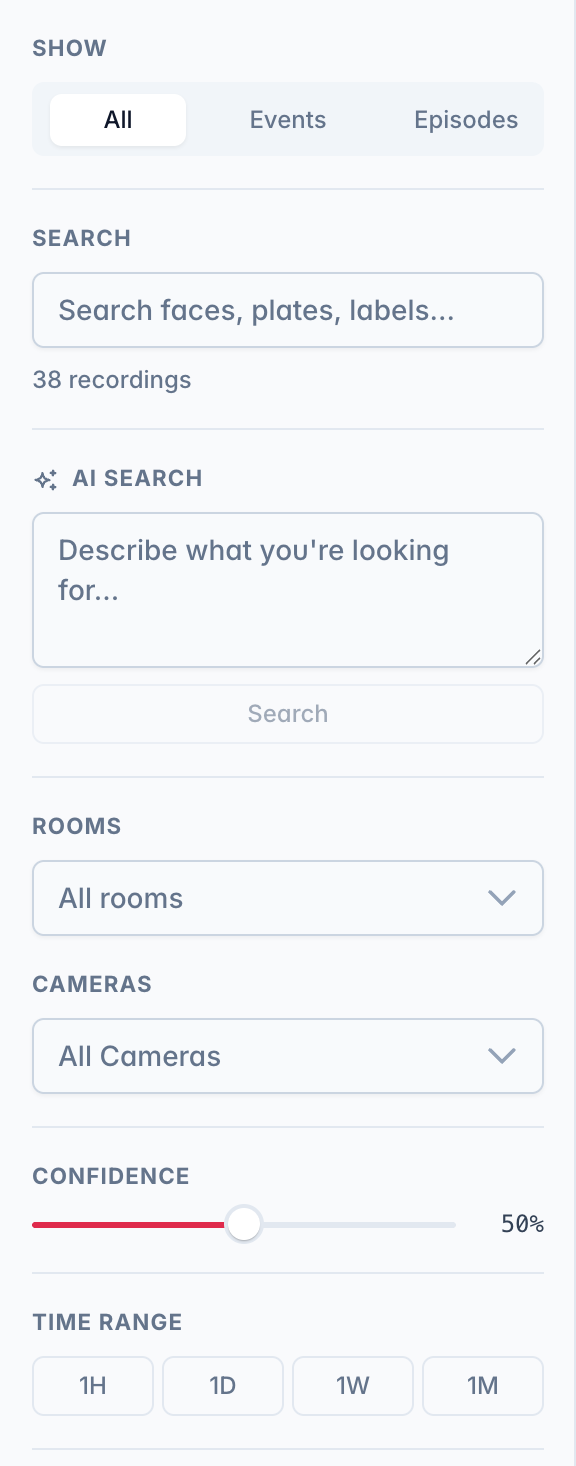
The other filters:
- Camera and time range.
- Rooms. Selects the cameras placed in those rooms on the floor plan.
- Labels. Person, vehicle, animal, or other.
- Trigger. Motion, a doorbell, a sensor, or a sound. Under Audio you can pick single sounds, such as Gunshot or Glass Break.
- Attributes. Events that contain a face or a license plate.
- Vehicles. Color and type of a vehicle, read from the picture. See Find an object.
- Confidence. Hide low-confidence detections.
- Grid search. With a single camera selected, draw a region on its snapshot to only show events detected inside that part of the frame.
Without a label or trigger picked, the list holds the events described in What the views list. The filters are saved to your account, the search and the time range are not.
View options
Behind the gear, top right:
- Ungroup. One card per moment instead of one card per event. Only events with several moments split, most have one. Episodes stay, pick Events under Show to hide them. Off by default. Your choice is saved to your account, so it follows you to other devices.
- Only with recording. On by default. Turn it off to also see events where a trigger fired but nothing was recorded, and episodes from times without footage. Those can't be downloaded or previewed.
- Favorites only. Admins only, see below.
Reading a card
Each card is one moment.
- Time and camera. Selecting the card opens playback at that moment.
- Faces and plates. When a moment also has a recognized face or a read plate, arrows step through its pictures in place, one per person or plate, with the name or plate shown. Someone the camera keeps losing and finding again still gets one picture. The small tiles at the bottom jump to one. With several people in one moment, the main picture lists every name and counts the unknown faces, like Azra +1.
- Grouped cards. A grouped card shows the event's other moments as small previews at the bottom. Each opens its own moment.
- Split cards. With Ungroup on, each card shows its place in the event, like 2/3. Hovering one highlights the other cards of the same event.
- The dots menu. Holds what the card does not show itself: the detection trace (admins only), Ask the assistant, the download, Correct person (admins only) when a face picture is on screen, and Delete event and Delete recording (admins only, see below).
- Hold to preview. On a phone or tablet, hold a card to play its short preview (lift to stop, tap to open). On a computer it plays on hover. The preview is zoomed to what the moment was about, with a clock for the frame's time. No preview means there is no playable footage, or it did not load in time. An episode card previews its cut: each camera in turn, with name and time.
Favorites
The star on a recording or episode card keeps that moment: automatic cleanup skips it, so its footage stays playable however old it gets and however tight the disk. Favorites only in the view options lists them. Both are admin-only.
Selecting and deleting
Admins can delete events here: Delete event in a card's dots menu removes that event, the dots button in the corner enters select mode for several or all loaded ones. Deleted events disappear everywhere at once: Home, the timeline, this list, and every open browser.[1]
Delete recording removes the event and its video right away. It works like deleting a range on the timeline: per minute, so other events in those minutes go too, and the most recent minutes can't be deleted yet.
Search
The search in the filter sidebar has one field, and the buttons above it switch what it searches. A running search stays when you switch.
- Search. Labels, names, plates and the text of AI descriptions, as you type.
- AI Search. Moments by description, like "a person carrying a package". See Semantic search.
- Ask the assistant. With the assistant set up. Type the search in your own words ("cars in the driveway yesterday", "favorites with the doorbell", "episodes from the entrance in the last hour") and it sets the filters below: cameras and rooms, time range, event types, vehicle color and type, sensors, favorites, and an AI Search when the words describe a scene the labels cannot. A note under the box says what the filters cannot express, an exact day for example.
- Search by picture. Admins only. A picture of a person or a vehicle, see Find an object.
Heatmap
A heatmap shows where activity was concentrated over a period. See Object detection.
Deleting an event removes it from the list and its detections. The video file is left in place and removed later by the storage cleanup on its normal schedule. ↩︎