
Workers
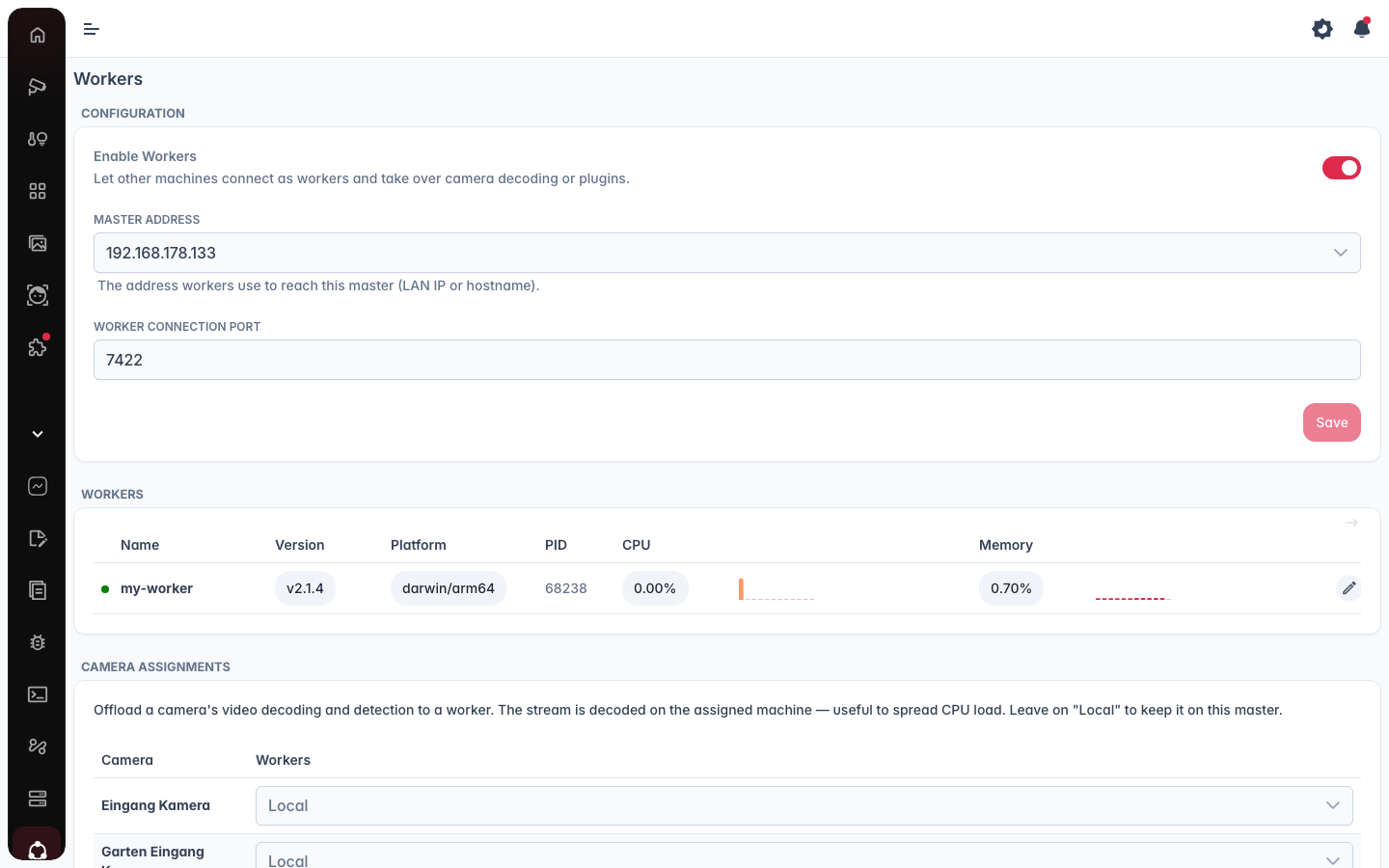
A worker is a second machine that takes on part of a server's processing. The main server (the master) keeps the UI and the settings; workers contribute compute. Manage them in Workers (in the menu).
A worker decodes the cameras assigned to it, or runs an entire plugin, for example a detection backend that needs a GPU the master doesn't have, or a plugin the master's platform can't load.
How workers work
A worker is a regular camera.ui installation started in worker mode. It has no UI of its own and holds no cameras; it connects to the master and waits for work.
- The worker connects outward. Pairing goes to the master's HTTPS port, the running connection to the master's worker port (default
7422). Only the master has to be reachable; nothing needs to be opened on the worker machine. - Paired once, then on its own. A one-time pairing code is exchanged for the worker's own credentials. Nothing is shared between workers, each one can be revoked independently, and after the first start the worker reconnects by itself.
- Assignments follow the worker. Cameras and plugins you assign run on the worker, fall back to the master while it's offline, and move back when it returns (see Failover).
Master and worker can mix installation types: a Docker server with a desktop app worker, a desktop-app server with a Docker worker, and so on. The camera.ui version should match across machines; the workers list warns when it doesn't.
Enable workers
Turn on Enable Workers on the master and set a Master Address, the LAN IP or hostname other machines use to reach this server. Workers can't be enabled without an address. A Worker Connection Port (default 7422) is also required; changing it later means already-paired workers must be re-paired.
A new master address needs no new pairing. Set it as the master address on each worker and restart the worker: it checks that the master behind the address is the one it was paired with and connects there. This works for the master's private IPs and the Master Address set here. In the same local network a worker finds the master by itself, for example after a move: when the master has not answered for a minute, the worker looks for it on the network and restarts to connect there.[1]
Pair a worker
Generate Pairing Code creates a one-time code (valid for 15 minutes) and a configuration snippet:
worker:
  master: <master address>
  apiPort: <api port>
  pairingCode: <code>
  name: my-worker
  capabilities:
    - frameDecoding
    - pluginHost
name is how the worker shows up on the master. Without it, the worker uses its host name.
Below the code the master shows its fingerprint. The worker logs the same fingerprint when it pairs; a different one means it paired with another machine.
Only the first start needs the code, and it may stay in the configuration afterwards: a used code is never sent again. A worker that starts before the master is reachable keeps trying, at least once a minute. A worker without a code, or with one the master refused, keeps running and waits for a new one. It reads camera.ui.yaml every 30 seconds, a new code in an environment variable takes effect when the container restarts.
How the snippet reaches the worker depends on the installation, see Worker setup.
The workers list
Once paired, a worker appears in the Workers list with its status, the number of its cameras and plugins that run, platform (OS/architecture), process ID, version, and live CPU and memory use. The status is Connecting until a new or restarted worker checks in, then Online, Not reachable while its answers stay away, Restarting while it restarts or updates, Offline, Outdated for a release this master cannot work with, and Disabled once workers are turned off. Hover it for the reason and the time from which its cameras and plugins run elsewhere, and the count for what each one is doing. An orange dot means the worker's version differs from the master's. When a worker is behind, a dot appears on the Updates entry in the navigation.
A worker that fails to link up at startup, or loses the link later, logs the reason in its log instead of looking online. Cameras and plugins running on a worker show up in Metrics with the worker's name and its load.
The Updates page lists every lagging online worker next to the server and the plugins, and a lagging worker shows an Update button right in the list too: the worker installs the version the master is heading for and restarts itself. The update counts as done once the worker runs that version; one that failed, or that the worker rolled back, shows why. A worker can't be restarted while it updates. Normally that is the version the master runs; when a server update is waiting, it is that one, so the worker does not have to be updated twice. An update that needs a newer Node.js on the master does not count until Node.js is updated. Desktop-app workers update the same way. See Updating.
A worker on a release this master cannot work with shows Outdated. It runs nothing, its cameras and plugins run elsewhere until it is updated, and its Update button and the Updates page install the new version on it. If the worker refuses, the message says why: a desktop app that cannot install updates remotely, and a worker on a release too old to take updates from the master, are updated on their own machine, see Updating.
Remove or replace a worker
Removing a worker revokes its credentials and drops the connection; its cameras and plugins stop there and fall back to the main server. A worker that was online keeps running and waits for a new pairing code; the old code in its configuration does not pair it again. One that was offline logs the rejection when it returns and keeps trying until it gets a new code. A new code in camera.ui.yaml pairs it within 30 seconds, one in an environment variable once the container restarts.
Two machines that run with one worker's identity, from a copied worker folder or a restored backup, get no cameras or plugins: the master stops the work on both and logs it. Remove the worker and pair one of them again. A second machine needs its own, empty storage directory to pair as another worker: while one identity is online, the master refuses to pair it a second time. To hand the identity to new hardware while the old machine still runs, pick the worker under Replaces before you generate the code; the machine that pairs with it takes over and the old one loses its access.
Through mDNS. A worker in a Docker container needs host networking for it. ↩︎