Mobile apps
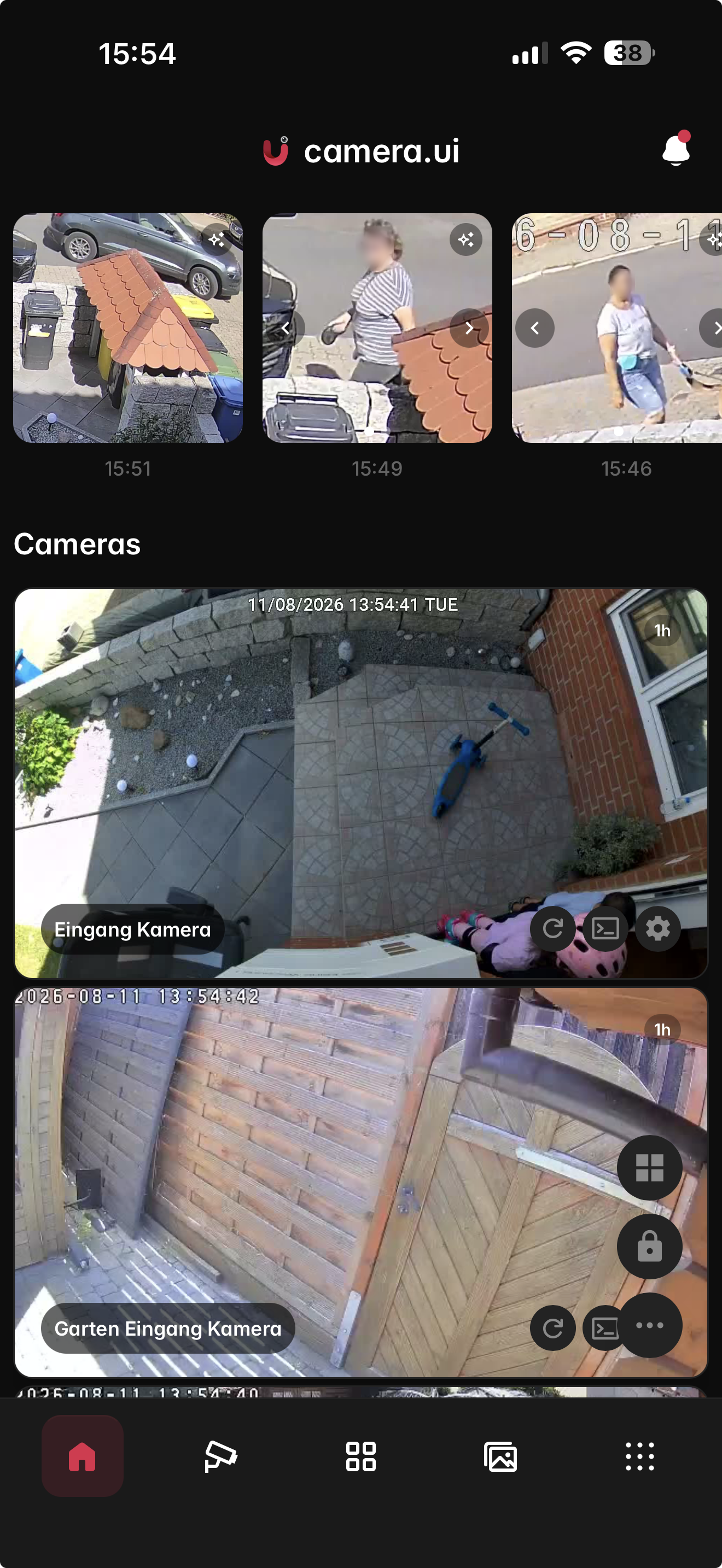
The iOS and Android apps are viewers for live view, recordings and notifications. They connect to a server running elsewhere (the desktop app or a server install).
Download
- iOS / iPadOS. Currently in beta. Join through TestFlight: install Apple's TestFlight app, then open the invite link on your device.[1]
- Android. Currently in open beta. Install it from Google Play, no invite needed.[2]
| Platform | Requirement |
|---|---|
| iOS / iPadOS | 17.4 or newer |
| Android | 8.0 or newer (API 26), Android System WebView 111 or newer |
Connecting to your server
The login page has two ways in: your camera.ui account, or Connect directly with the server's address. Push needs the account.
With your camera.ui account
Sign in with your camera.ui account (Google, Apple, or email) and your paired servers appear. The app picks the route itself:
- At home. On the server's network it connects directly, so live view starts faster. It trusts the server's certificate for local addresses automatically.
- Away. Off the network, it goes through camera.ui Cloud.
On the server side this needs:
- Remote access via camera.ui Cloud enabled.
- The server paired to your account.
Directly
Connect directly lists the camera.ui servers it finds on your network; on iOS the app asks for access to the local network first. A server in a Docker bridge network doesn't show up there. Pick one, or enter an IP address or host name (the app adds port 3443) or a full https:// address. The app connects over https only. On the first connect it shows the server's certificate with its fingerprint: trust it only for your own server. If the certificate changes, the app asks again and shows the old and the new fingerprint.
Then sign in with your camera.ui user. From then on the app knows all of the server's addresses and picks the route itself, at home the local network. Away from home it needs an external route: a Cloudflare tunnel, a custom domain or a VPN into your network. Without one, the app says so after the sign-in and marks the server Home or VPN only. A Quick Tunnel gets its own note, because its address changes with every restart.
Your direct servers stay under Your servers on the login page and, when you're signed in with your account, under Connected directly in the server list. Remove in the row's ⋯ menu takes one off the phone along with its sign-in.
Notifications
An app signed in with your camera.ui account receives push notifications for events. A server opened with Connect directly sends no push, its Settings → Notifications links to the account sign-in instead. What you get alerted about is set under Notifications.[3]
Biometric login
Settings → Account → Biometric login signs you in with Face ID or Touch ID instead of your password. The credentials are kept in the device's secure storage; sign out and back in once after enabling it so they get stored. Turning it off removes them.
App lock
App lock with Face ID / Fingerprint under Account in the app's server list asks for biometrics (or the device passcode as fallback) at every start, and again after a few minutes in the background. A brief switch away doesn't re-prompt. It is independent of biometric login.
Updates
The apps update through the App Store and Google Play (on iOS during the beta: TestFlight), plus over-the-air updates to the interface. See Updating.
If the server or its NVR plugin is older than the app needs, the app shows Update recommended with the version it needs and the one installed. Update server and plugin on the Updates page. Got it hides the notice for these versions.
The app moves to the App Store with the public release. ↩︎
For beta builds, turn on Beta updates under Settings → System in the app. ↩︎
An active camera.ui subscription covers recording (NVR) and the features built on it, such as playback, export, face recognition, semantic search, and AI descriptions, plus push notifications. Live view and real-time detection are free. ↩︎