
Reverse proxy
Behind Apache, nginx, Traefik or any other reverse proxy, camera.ui needs more than plain HTTP: live video, events and the camera list travel over WebSockets. A proxy that forwards only ordinary requests gives you a UI that loads and stays empty.
What the server expects
The main port serves HTTPS. camera.ui listens on port 3443 by default, using a certificate it generates itself. A proxy pointed at that port has to connect with https:// and skip certificate verification, since there is no public issuer to check against. Or switch on a plain HTTP port.
WebSocket upgrades have to reach the server. They use the same host and port as the rest of the app, so the simplest setup forwards everything under / with upgrades.
Connections stay open for a long time. A live stream holds one connection for as long as you watch. Proxy timeouts in the low seconds cut the picture at regular intervals.
Only a trusted proxy passes on the client's address. camera.ui reads X-Forwarded-For from a proxy on the same machine, which connects over 127.0.0.1 or ::1, and from the addresses you trust. Behind any other proxy, the session lists show the proxy's address.
Apache
Enable proxy, proxy_http, proxy_wstunnel, ssl and headers, then use this virtual host:
<VirtualHost *:443>
  ServerName nvr.example.com

  ProxyPreserveHost On
  ProxyRequests Off

  SSLProxyEngine On
  SSLProxyVerify none
  SSLProxyCheckPeerCN off
  SSLProxyCheckPeerName off
  SSLProxyCheckPeerExpire off

  ProxyTimeout 300

  ProxyPass        "/" "https://10.0.0.27:3443/" upgrade=websocket timeout=300
  ProxyPassReverse "/" "https://10.0.0.27:3443/"

  RequestHeader set X-Forwarded-Proto "https"
  RequestHeader set X-Forwarded-Port "443"
</VirtualHost>
The upgrade=websocket option needs Apache 2.4.47 or newer (apachectl -v). On older versions, drop that option and route the upgrades with mod_rewrite instead:
  ProxyPass        "/" "https://10.0.0.27:3443/"
  ProxyPassReverse "/" "https://10.0.0.27:3443/"

  RewriteEngine On
  RewriteCond %{HTTP:Upgrade} =websocket [NC]
  RewriteCond %{HTTP:Connection} upgrade [NC]
  RewriteRule /(.*) wss://10.0.0.27:3443/$1 [P,L]
The rewrite target must be wss://. With ws:// the handshake goes unencrypted to a TLS port, Apache logs error reading status line from remote server, and every WebSocket fails with a 502 while normal pages load fine.
nginx
map $http_upgrade $connection_upgrade {
  default upgrade;
  ''      close;
}

server {
  listen 443 ssl;
  server_name nvr.example.com;

  client_max_body_size 100m;

  location / {
    proxy_pass https://10.0.0.27:3443;
    proxy_ssl_verify off;

    proxy_http_version 1.1;
    proxy_set_header Upgrade $http_upgrade;
    proxy_set_header Connection $connection_upgrade;

    proxy_set_header Host $host;
    proxy_set_header X-Forwarded-Proto $scheme;
    proxy_set_header X-Forwarded-For $proxy_add_x_forwarded_for;

    proxy_buffering off;
    proxy_read_timeout 300s;
  }
}
client_max_body_size matters if you restore a backup through the proxy, since nginx rejects uploads over 1 MB by default.
Proxy on another machine
For the session lists to show the client's address behind a proxy on another host, add the proxy under Trusted proxies in the Reverse proxy card under Settings → Remote Access. An entry is an IP address or a range like 10.0.0.0/24, and it applies on save. A listed address can pass on any client address it likes, so list the proxy and nothing else.
In Docker, CAMERA_UI_TRUSTED_PROXIES=10.0.0.5 sets the list instead, with several entries separated by commas. The field then names the variable and stays locked, and camera.ui skips an entry it can't read and names it in the log.
Plain HTTP instead
camera.ui can open a second listener that speaks plain HTTP and forwards everything, WebSockets included, to the main port. Enter a port, 8081 for example, as HTTP port under Settings → System and save, or set CAMERA_UI_INSECURE_PORT=8081 in Docker. Then point the proxy at http://10.0.0.27:8081 and drop the SSLProxy* lines or proxy_ssl_verify.
This listener binds to the same address as the main port, so it is unencrypted on your whole network. Use it only where that traffic stays trusted, such as a proxy on the same machine or a network segment you control.
Other websites
A page on another address, a dashboard for example, can call the camera.ui API from the browser only when its address is listed under Allowed websites in the Reverse proxy card, as https://dashboard.example.com.
When the interface loads but stays empty
Cameras show a placeholder, the event row never fills, and nothing updates. That is a WebSocket problem, not an authentication problem. In the browser's developer tools, filter the network tab by WS and reload. A failing entry with status 502 or 400 confirms it, and your proxy's error log names the reason.
Behind a login proxy
With Pangolin, Authelia or another proxy that asks for its own login, page loads always go through the proxy, so it can ask again once its session runs out. If a browser still stays on Cannot reach your home server, clear its site data for camera.ui once and open the page again. To skip the camera.ui login behind such a proxy, see Sign-in through a proxy.
Telling camera.ui about the address
Once the proxy works, enter the public address under Settings → Remote Access as described in Custom domain.
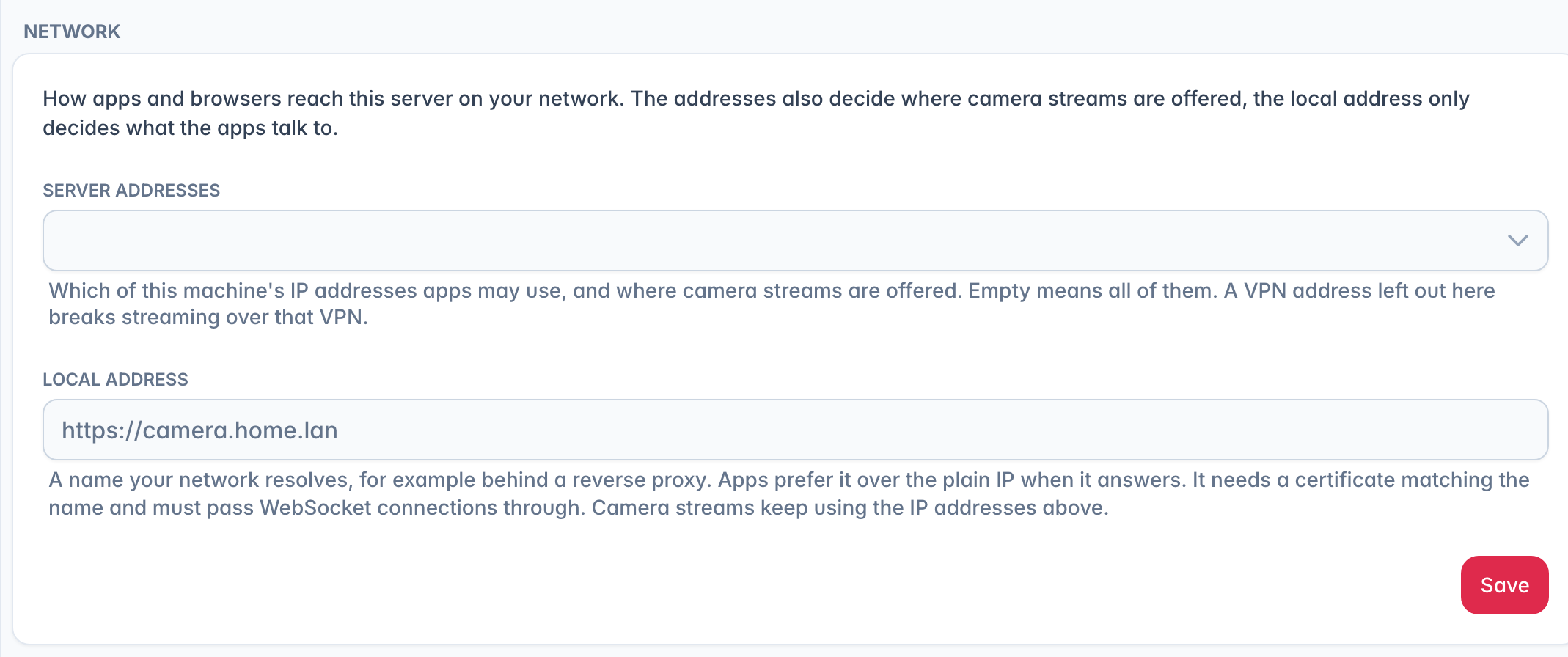
If the proxy also answers on your own network, put its address into Local address in the Network card on the same page, for example https://camera.home.lan. Apps then talk to the proxy at home instead of the server's IP. Apps that connect through camera.ui Cloud do this only for a local name, one ending in .lan, .local or .home.arpa for example, or one without a dot. They treat any other name as an internet address. The proxy needs a certificate for that name and has to pass WebSocket connections through, the same as for outside access. It also has to forward OPTIONS requests to camera.ui and pass its Access-Control-* headers on unchanged, since the apps call it from another origin. Otherwise they take the internet path at home. Camera streams keep using the IP addresses in Server addresses above, so leave those alone.
Test connection checks the address by requesting it from the server itself. If your router has no hairpin NAT, or internal DNS sends the name somewhere else, that request never comes back and the test fails even though the address works from outside. Remote access keeps running anyway: camera.ui gives up a custom domain only when the name stops resolving on the public internet. Pointing your internal DNS at the proxy makes the test pass too.
Next steps
Custom domain — enter the public address in camera.ui. camera.ui Cloud — remote access without touching your network.