
Timeline & playback
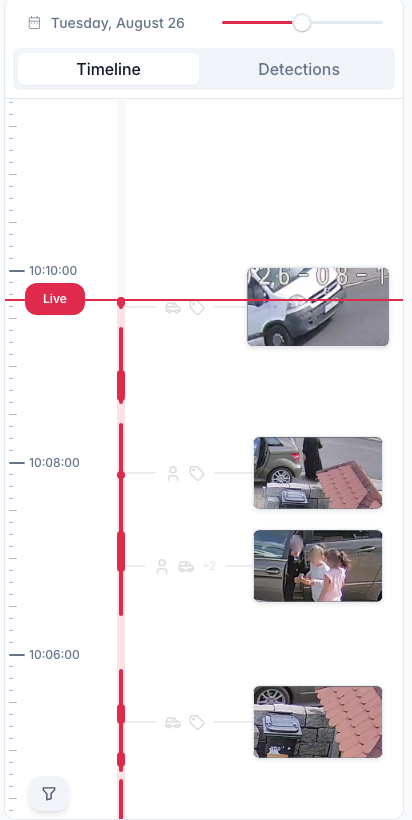
Each camera's timeline scrubs through its recorded footage, with marks where events happened.
Reviewing footage
- Scrub along the timeline. Scrubbing uses the low-resolution stream.
- Play and pause, skip 30 seconds back or forward, and change the speed between 0.25x and 8x. When the connection or the device cannot keep a high speed, playback switches to the low-resolution recording until you slow down again.
- Find an object. Admins only. Open Find, tap a person or a vehicle in the picture, and get the moments that show it. See Find an object.
- Event marks show a thumbnail. Click one, or a full event bar, to play from where it began.
- Motion, sounds, sensors and line crossings within an event show as small dots, each where it began. Dots too close together for the zoom become one with a count next to its icon. Hover a dot to see what it was and when, click it to jump there.
- Rings and alarms. A doorbell press, siren, security system, contact event or alarm sound shows as a full event bar with its own icon and a snapshot, even when the camera saw nothing. A ring during a running motion event appears right away, not after the motion ends.
- Filter, Export and Delete recordings sit behind the arrow button in a corner of the timeline. A dot on the arrow means a filter is on.
- Filter by event type. The filter button picks which event types get a picture or a dot on the timeline and a card in the detections list, the bars stay. Other sound is off by default, Motion on cameras with object detection. Where two pictures would overlap, an object wins over a sensor, then an alarm sound, another sound and motion. Each camera keeps its own filter, on its timeline and in its event dialogs. The Camview timeline over several cameras has a separate one. Both stay with your account.
- Filter by zone. In the filter, turn on Filter by zone and mark areas on the camera picture to keep only events detected inside them.
- Zoom from an overview down to seconds: pinch the timeline with two fingers or scroll with Ctrl held. Larger screens also have a zoom slider or buttons. At the deepest level scrubbing is frame-accurate in the playback quality and the timeline shows a Fine Scrubbing badge. When a full picture takes too long to load, dragging shows the low-resolution stream and the picture turns sharp when you let go.
- Jump to a day with the calendar. Days with footage are highlighted.
Playback quality
Each camera has a Playback source in its settings, under Interface: Auto, High, Mid or Low. Auto is the default and the one to keep.
A recording can have a hole in one quality and not in another, for example when the high stream dropped out while the low one kept going. On Auto, playback takes the best quality that has footage at that spot, with a badge naming it while it is not the top one, and switches back once the high recording resumes. A pinned quality stays put, hole included.
When a camera was not recording
Bands under the timeline say what the camera was doing when there is no footage:
- offline means the camera recorded nothing at all.
- recording without high (or another quality) means only that stream stopped. There is still footage, just not in every quality, and Auto plays it.
A band spans exactly from where the recording stopped to where it resumed. Blips shorter than 15 seconds paint no band.
When an outage has phases (the high stream goes first, the rest follows, one comes back before the other), they sit side by side in one band, each in its own color, labeled with the total duration. Hover it to read the phases.
Timeline, detections and find
The panel switches between its views: Timeline, Detections and, for admins with the NVR plugin, Find for the object search, with the number of matches next to it. Detections lists what was detected: day, time, duration, a preview image and icons for the detected types. Click an entry to jump to it. Playback runs from one entry to the next, and a detection shorter than 5 seconds plays for 5 seconds.
Above the vertical timeline the views are a switch, in the strip below the picture icons in its top row. A narrow strip shows only the icon of the current view, tap it for the others. On a phone, dots at the bottom of the timeline show the view, tap one or swipe sideways.
Several cameras at once
In Camview, the timeline follows the camera you open and shows its recordings and events. Only that camera decodes, so scrubbing stays fast in a busy layout. The event filter can show the other cameras' events too, and clicking one jumps to it.
Trimming
Export on the timeline turns on trimming: drag the handles to set start and end, then export the selection. See Export & download.
Deleting a range
Admins can delete footage from the timeline: Delete recordings, drag the handles over the span, then Delete selection. The footage and every event inside it are removed for good, per minute, on every open device. The most recent minutes are still being written and can't be deleted yet.