Notifications
Where alerts arrive
- In the app. Every alert lands in the in-app list (the bell), on every device.
- Desktop app. While it's running, including in the tray, it shows native system notifications for the server it's connected to, except while its window is in front. No cloud or account needed.
- Phone (push). The mobile app gets push even when it's closed, delivered end-to-end encrypted through camera.ui Cloud.[1]
Getting push on your phone
Phone push needs all of these. If one is missing, alerts only land in the in-app bell:
- The native app. Push only reaches the mobile app from the App Store or Play Store. A browser or the web app (PWA) shows the in-app bell, but never push.
- camera.ui Cloud. Push is delivered through camera.ui Cloud, so the server needs it enabled and paired to your account. It also needs an active subscription.
- On, and synced. In the app, open Settings → Notifications, turn the master switch on, and tap Sync this device once. Repeat on every phone, for every server you connect to.
Push repairs itself after a reinstall. Reinstalling the app, clearing its data or a new phone resets the push token, and the app re-registers with the server in the background. If it can't (the phone's notification permission is off, say), a Push notifications stopped working note with a Fix button appears on any screen. Re-sync in Settings → Notifications does the same. The This device row only asks for a sync when the server really doesn't know this phone.
Mute from the push. Press and hold a camera push and pick Mute this camera for 1 hour or Mute all cameras for 1 hour. Both apply to this phone only, and alerts about camera.ui itself still come through.
Push stays private
Alerts are end-to-end encrypted before they leave your server. camera.ui Cloud, Google and Apple only forward them and cannot read them. Your phone loads pictures and clips, also with Video in Push, straight from your own server, so the cloud never sees a frame.
Your notification settings
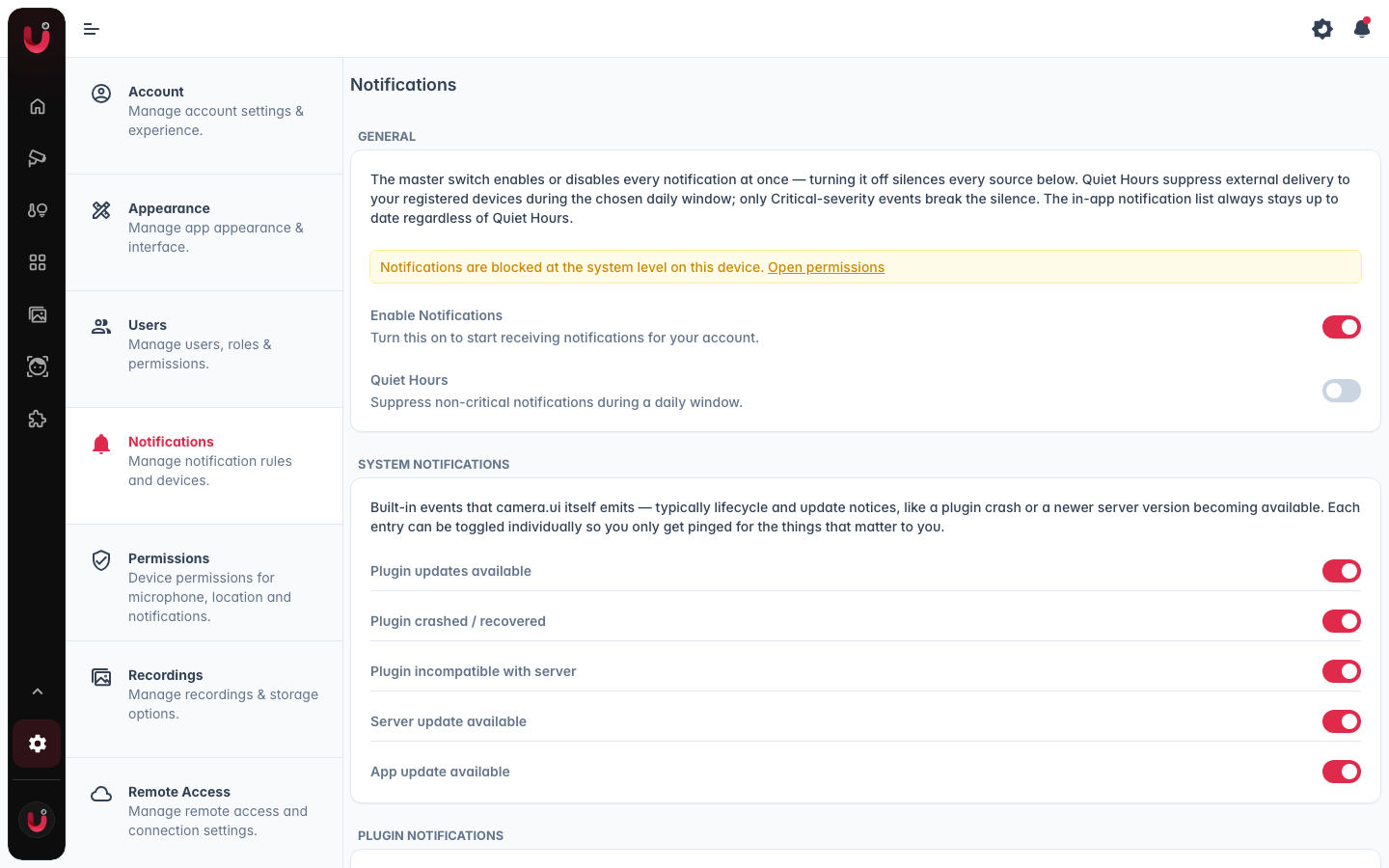
Settings → Notifications belongs to your account and applies on every device you sign in on.[2]
- Master switch. All notifications on or off. Off for a new account, and the other sections only appear once it's on.
- This device. On a phone, tap Sync this device once to start receiving push. In the desktop app, this switches native notifications on or off for that computer alone.
- Quiet hours. Silence non-critical alerts during a daily window. Critical alerts still come through, and the in-app list stays current.
- System notifications. Alerts about camera.ui itself: server and app updates, plugin updates, an update that failed, a plugin crashing or recovering, a worker with cameras or plugins that is offline for two minutes and comes back, remote access that is down for ten minutes and comes back,[3] and a scheduled backup that failed. Each one has its own switch.[4]
- Plugin notifications. Alerts that plugins send, such as a camera going offline or storage filling up. Each plugin has its own switch. Tapping a camera offline or online alert opens that camera's log, where the reason for the outage is usually shown. The NVR's storage, license and cloud sign-in alerts open Settings → Recordings.
- Devices. The phones and other targets your alerts go to. Rename one, switch Active off to pause it, or remove it to unregister it for good.
What each camera alerts you about
Each camera has its own notification settings, in the camera's settings under Notifications:[5]
- Send notifications. The camera's own switch. Off means this camera never pushes, while its events still land on the timeline and in the app. On by default.
- Which objects alert you. Set by the camera's alert zones, not here. Without an alert zone the camera alerts on everything it detects. Draw one to narrow it down by type and by area.
- Cameras without object detection. They push Motion Detected with a picture instead, once per event. Their motion zones decide where motion counts, and the cooldown applies.
- Which faces and plates alert you. Also set by the alert zones. A zone can name the people it pushes for, with entries for unknown faces and for anyone enrolled, and the same for plates. Nothing selected notifies for everyone.
- Notify for sounds. Which sounds, such as alarms or glass breaking.
- Notify for sensors. Which sensor triggers push, such as a doorbell, a contact, a lock or a smoke sensor. Switches, lights and power push when they turn on.
- Notification speed. How long to wait for a good picture. Immediate sends right away, with a picture only if one is ready. Balanced (the default) waits up to 2 seconds, Best up to 4. A recognized face always sends immediately, and the picture is updated quietly afterwards.
- Cooldown (seconds). A quiet period after an alert. 30 seconds by default, up to 600. Doorbell and alarms bypass it.
- Video in push. Attach a short clip of the moment to the push. On iPhone it plays right in the notification, on Android the expanded notification animates the clip frame by frame,[6] and the in-app alert opens with a player. Uses the lowest recorded quality. Off by default.
Pushes with an AI description
With AI descriptions on, the alert carries what the AI saw instead of the bare "person detected".[7] This is Moment Pushes in the camera's settings, and the alert waits for the description. Doorbell rings and alarms still arrive immediately, and when the model does not answer in time the plain detection push goes out instead.
Push Timing decides how often a busy event reaches you:
- Per Moment. Each moment pushes as its description is ready. This is the default.
- Per Event. The descriptions collect and one push goes out after the scene has been quiet for a while. Tapping it opens the beginning of the event.
An alert that is already on your lock screen is updated quietly when something better arrives, a recognized name or a sharper picture, without buzzing again.
Critical alerts
Critical alerts, like a doorbell ring or an alarm, are delivered immediately and ignore both the cooldown and quiet hours.
Push notifications to the mobile apps require an active camera.ui subscription. ↩︎
The This device row is the exception. It only affects the phone or computer you are on. ↩︎
camera.ui checks its connection to the camera.ui Cloud and its own Cloudflare tunnel. A custom domain behind your own proxy is not checked. ↩︎
Only admins see the system notifications section. ↩︎
Sending the push is the NVR plugin's job, so a camera without one saves the settings and starts using them once a plugin is installed. ↩︎
Android notifications cannot play video, so the current app pulls frames from the clip and cycles them. Tapping still opens the recording. ↩︎
AI descriptions come from the NVR plugin. Turn them on in its settings. ↩︎