
Logs & console
The Logs view (in the menu, admins only) shows the server log.
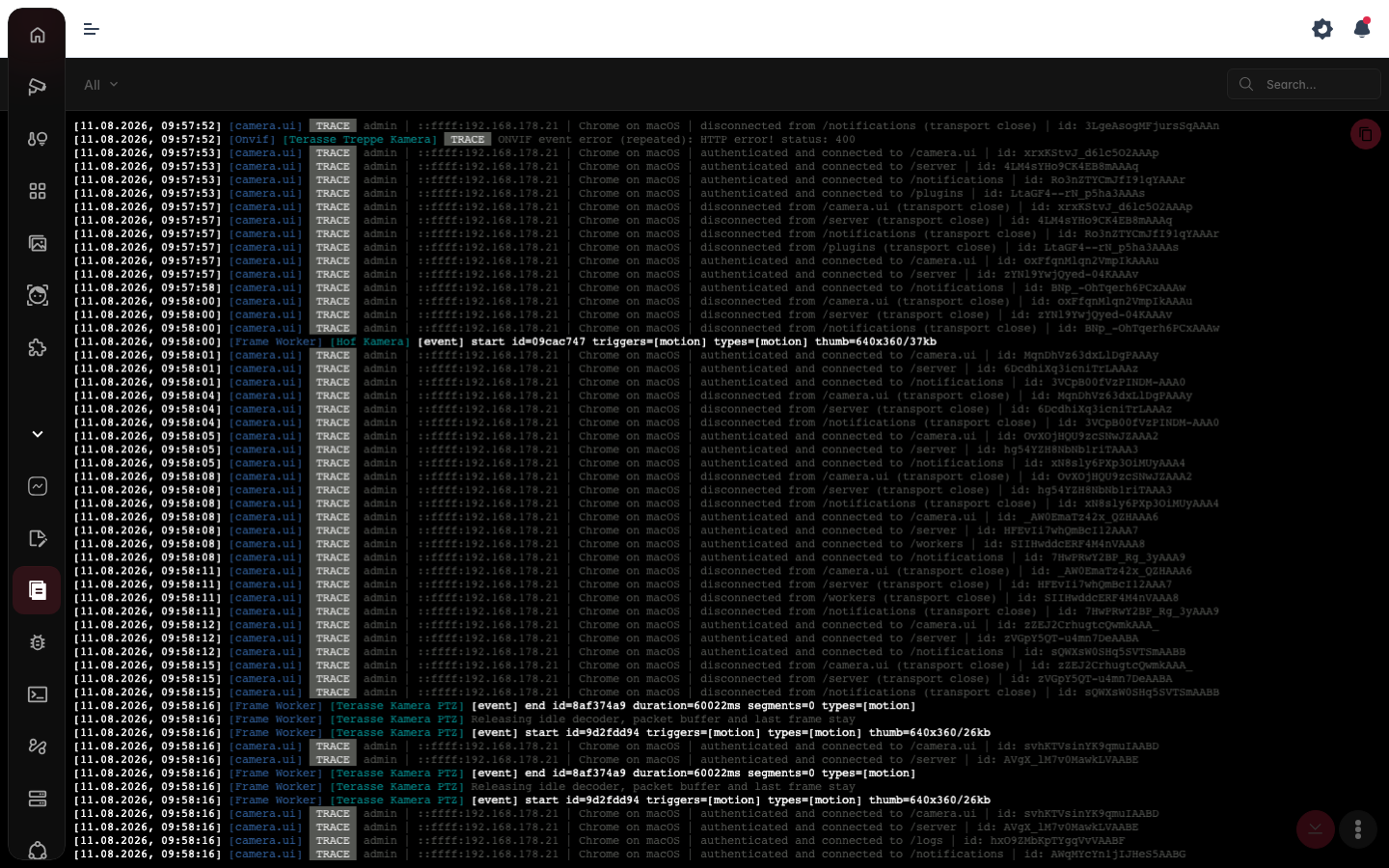
Reading the logs
Logs stream live. Filter by source (All, a system component such as Server, go2rtc, nats, tunnel, a camera or a plugin), search the loaded lines, or download, copy all or delete the log. The download holds the whole log, copy all only the lines loaded in the view.
Scroll up to load older lines, as far back as the log goes. While you read further up, new lines don't push the view: a new lines button counts them and takes you back to the end. The log dialogs of a camera card and a plugin card work the same way.
Each log keeps its most recent entries up to a fixed size, older ones drop out. Logs of removed cameras and plugins are deleted.
Console
The Console (in the menu, available to every user) shows the log of the app itself, not the server: the place to look when a view stays empty, a stream won't play or a button does nothing.
It only collects entries while logging is on. The record button at the bottom right starts and stops it, debug-level entries included.
The Levels menu filters by Debug, Log, Info, Warning and Error. Export / share saves the output as a text file.
For problems with the app, the Console export is the useful thing to attach. For problems with the server, the Logs download.
Terminal
There's also a Terminal in the menu, an interactive shell on the server for advanced troubleshooting. It's available on server installations, not in the desktop app.
Each tab opens its own shell. Drag a tab to move it (on a phone, hold it briefly first), double-click or double-tap it to rename it. The pin in the menu at the bottom right keeps a tab and its shell running on the server: after a reload or on another device the tab opens that shell again. Tabs without the pin close on a reload. Closing a tab or restarting the server ends its shell.